Unity Shader · Part 4 of 13 · November 7, 2021
Unity Shader #4 Drawing Shapes on UV
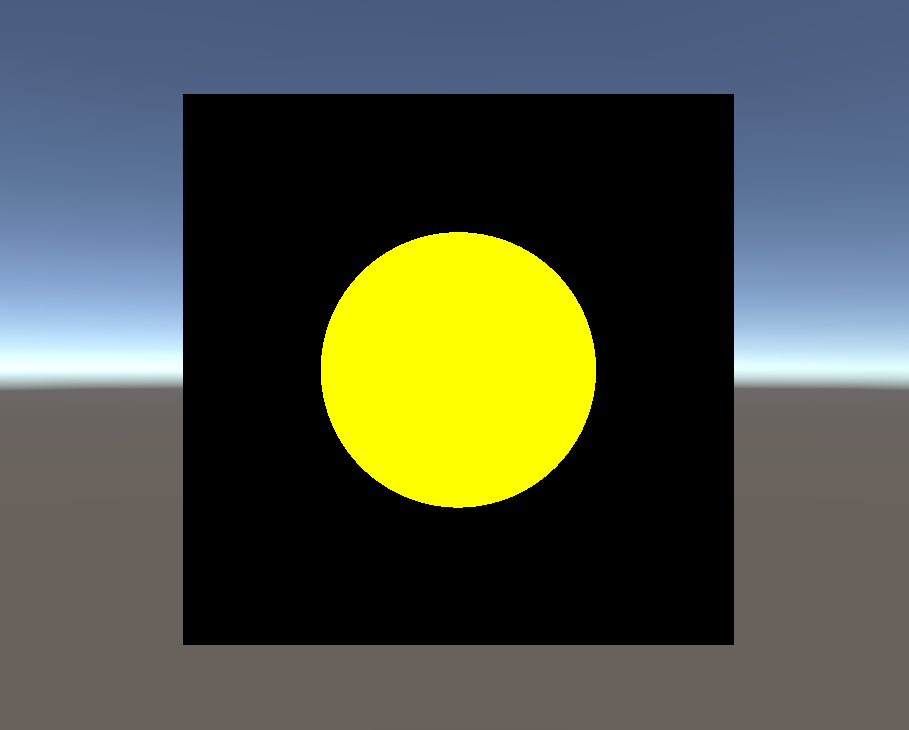
This article covers some basic Shader code exercises, using UV coordinates to draw simple shapes.
This article mainly uses pseudocode, so it may not compile in a normal ShaderLab file. Please refer to Unity's documentation for specific functions.
Basic Functions
First, let's understand three basic functions we will use: step(edge, n), smoothstep(min, max, n), and lerp(a, b, delta). These three functions are heavily used in Shaders, so it is essential to master them.
Step
The function definition is simple.
int step(float edge, float n) {
    return 1 if edge <= n
    return 0 if edge > n
}
For example
step(1, 2) = 1
step(2, 1) = 0
step(a, b) == (a<=b) ? 1 : 0
A simple way to remember: step returns the same value as <= (if true = 1, false = 0). This function gives us a sharp edge, as we will see later.
Smoothstep
Another function is
float smoothstep(float min, float max, float n) {
    return 0 if n <= min
    return 1 if n >= max
    return an interpolated value if min < n < max
}
This function essentially remaps n ∈ [min, max] to [0, 1], and clamps other values of n to 0 and 1. In Shaders, we often use smoothstep() when we want a smooth edge transition.
Lerp
The last function is
float lerp(float A, float B, float delta) {
    return A if delta <= 0;
    return B if delta >= 1;
    return (1-delta)*A + delta*B if 0 < delta < 1;
}
lerp(-0.4, 0.4, 0) = -0.4
lerp(-0.4, 0.4, 1) = 0.4
lerp(-0.4, 0.4, 0.5) = 0
Lerp stands for Linear Interpolation, so this function performs linear interpolation based on delta. Interpolation based on delta can be thought of as delta being the weight of B in the calculation.
Drawing a Circle
Let's consider what a circle means in UV space.
For example, the point (x, y) in the figure below should be outside the circle. The point (a, b) should be inside the circle. If we consider the circle's center at the origin (0, 0), then the length of the 2D vector (x, y) should be greater than the circle's radius, and the length of (a, b) should be less than the radius.
Similarly, all points whose distance from the center is less than the radius should be inside the circle—we color them with the circle's color. The rest we color black, which gives us the following effect.
Therefore, we can have the following pseudocode.
float r; // Radius of the circle
Color circleColor; // Color of the part inside the circle

foreach point (x,y) on the geometry {
    inCircle = step(length(x,y), r);
    color = inCircle * circleColor;
}
To add: if we are writing this code in Unity ShaderLab, we would put it in the fragment shader. The fragment shader runs per-pixel, so we don't need a for loop. To recall, the fragment shader executes once for every pixel; even if a pixel doesn't have a v2f structure directly from the vertex shader, it will be interpolated before the fragment shader runs, so each pixel has its own corresponding v2f structure.
Currently we don't care what is drawn inside the circle, so we don't need to sample any texture. We just fill with a uniform color. As mentioned above, if inside the circle we multiply by 1.0; if outside, we multiply by 0.0. This way we naturally fill the pixels inside the circle with color.
Below we only write the actual Unity code for drawing the circle; the subsequent shapes will not be elaborated.
// Property
Property {
    _CircleColor("Circle Color", Color) = (1,1,0,1)
}

... OMIT SubShader and Tags etc.

// Define v2f: vertex to fragment
struct v2f {
    float4 vertex : SV_POSITION;
    float4 position : TEXCOORD0;
}

// Define vertex shader
v2f vert (appdata_base v) {
    v2f o;
    // transform the object space vertex position to clip space
    o.vertex = UnityObjectToClipPos(v.vertex);
    // record its object space position
    o.position = v.vertex;
    return o;
}

// Define fragment shader
fixed4 frag (v2f i): SV_Target {
    float inCircle = step(length(i.position.xy), 0.25);
    fixed3 color = _CircleColor * inCircle;
    return fixed4(color, 1.0);
}
We can see that although this looks like a long block, the truly important part is really just the calculation of the inCircle variable. For the subsequent shapes, we will only discuss this check value. What matters is the underlying algorithm.
Drawing a Square
Below is the check value for a square:
int inSquare (pt, size, center) {
    Vector p = pt - center; // p is pointing from center to pt
    halfsize = size * 0.5;
    // horizontally inside: p.x should appear right to the left boundary and left to the right boundary
    h = step(-halfsize, p.x) - step(halfsize, p.x);
    // vertically inside: p.y should appear down to the top boundary and up to the bottom boundary
    v = step(-halfsize, p.y) - step(halfsize, p.y);

    return h * v;
}